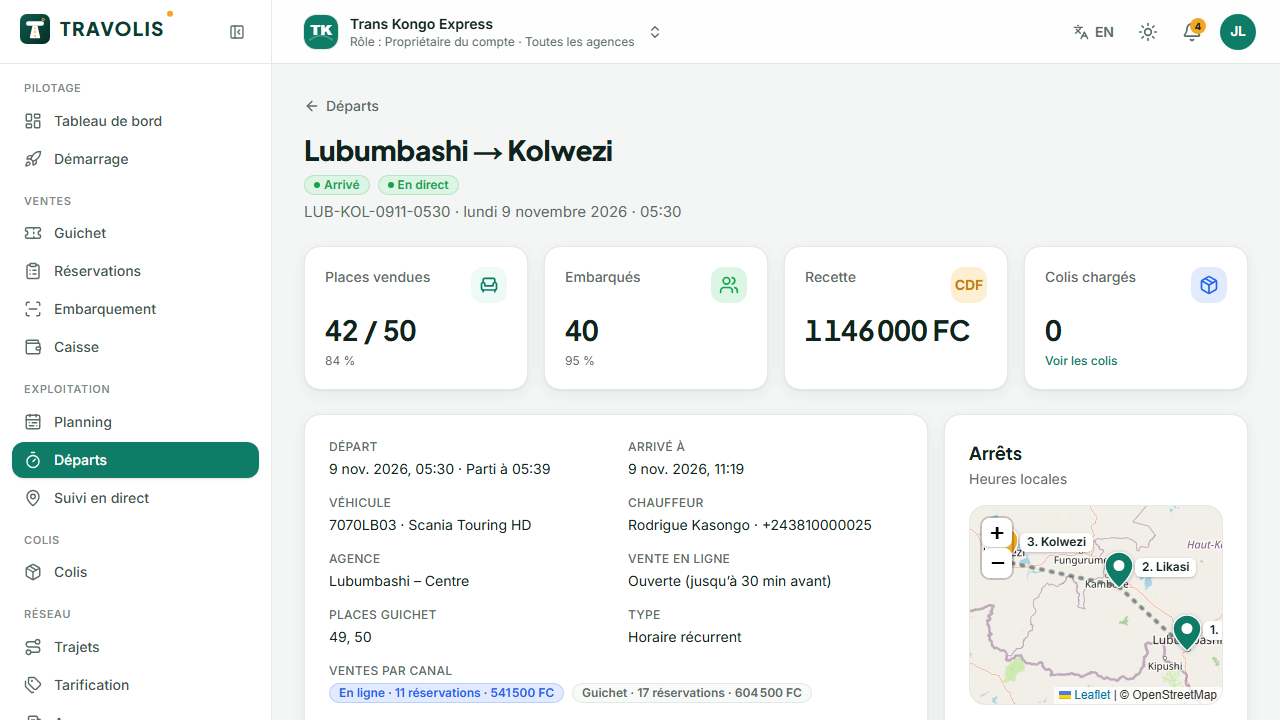
Create a one-off departure
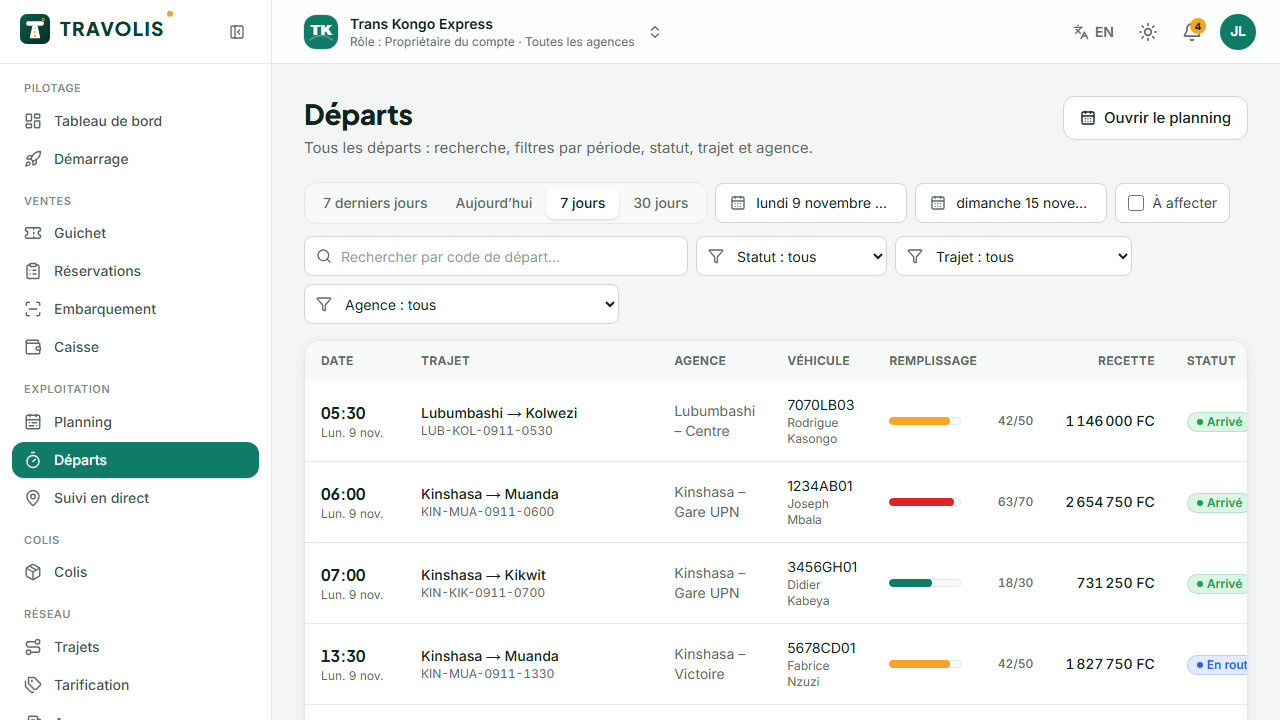
- Open Departures and tap New departure.
- Choose the route, the departure agency, the date and time.
- Assign a vehicle and a driver if possible (you can do it later).
- Set online sales (on or off), the online sales cut-off before departure and the counter quota: the number of seats kept for counter sales.
Create recurring departures
Recurring departures tab → New: route, agency, time (e.g. 06:00), days of the week, start date and optional end date, usual vehicle and driver, counter quota, generation horizon (30 days by default). TRAVOLIS creates the departures over the chosen horizon; Generate now extends it immediately.
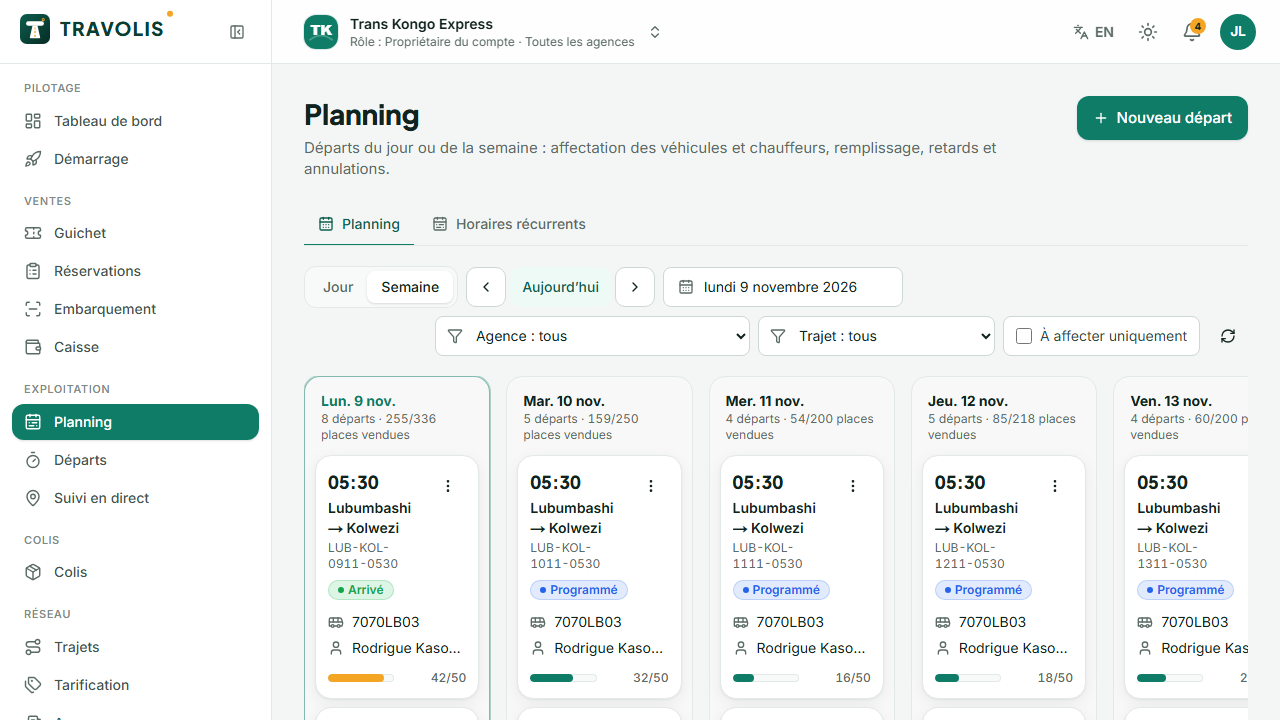
The planning
Planning shows the day or the week per agency:
- each departure with time, route, load bar, vehicle, driver and status;
- departures without vehicle or driver are highlighted;
- clicking a departure lets you assign a vehicle and driver, change the status or open the details.
Departure statuses
Scheduled → Boarding → Departed → On the way → Arrived. A departure can also be Delayed (enter the minutes: travellers are told by SMS) or Cancelled (reason required: all travellers are refunded 100% or receive a credit, as they choose).
Departure details
From Departures, open a departure to see:
- the live seat map;
- occupancy per segment (seat × segment matrix);
- the manifest to download as PDF or Excel (passengers and parcels, with signature boxes);
- the event timeline, incidents reported by the driver, the vehicle's live position;
- the waiting list and the Notify button when seats free up.