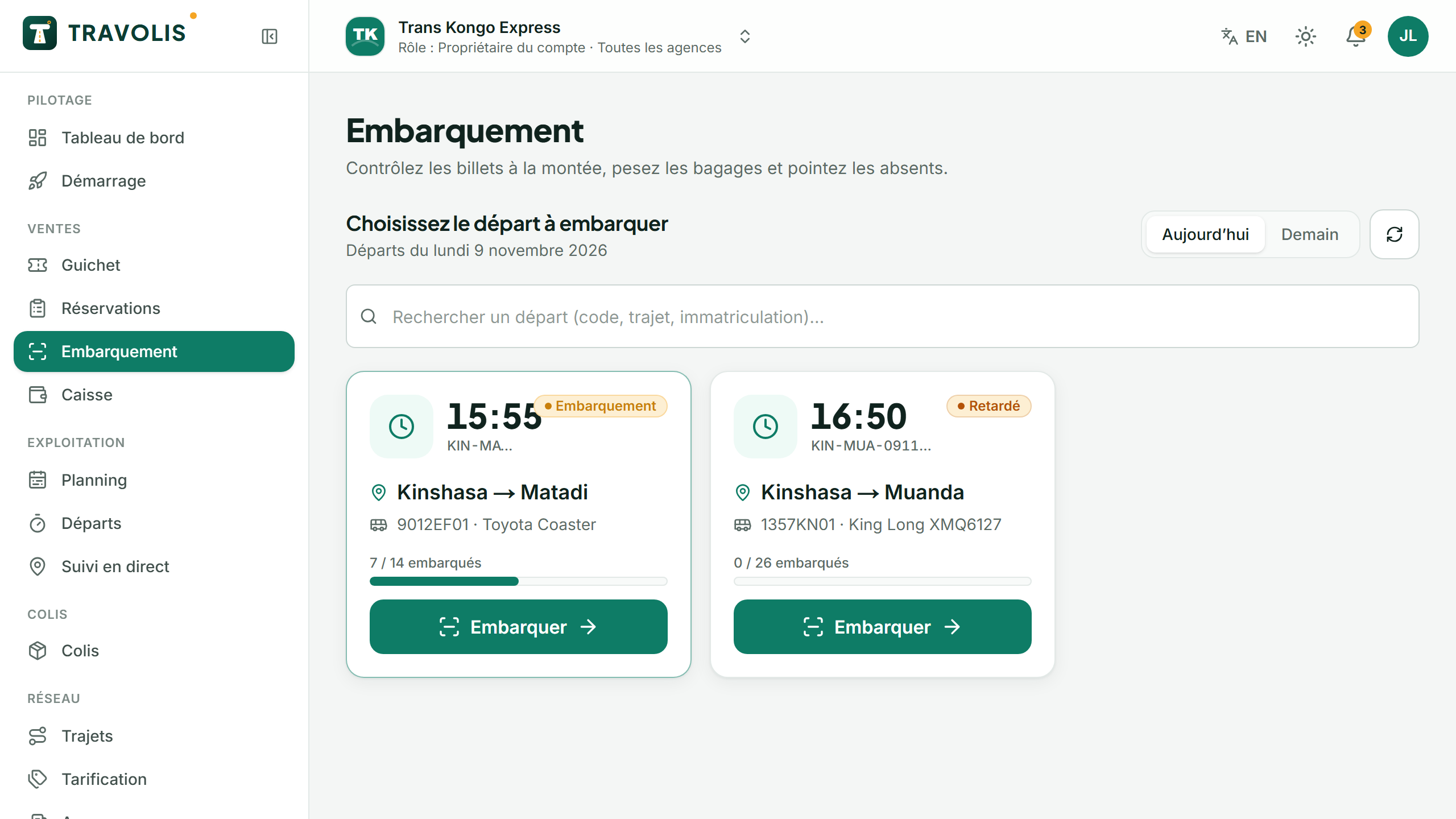
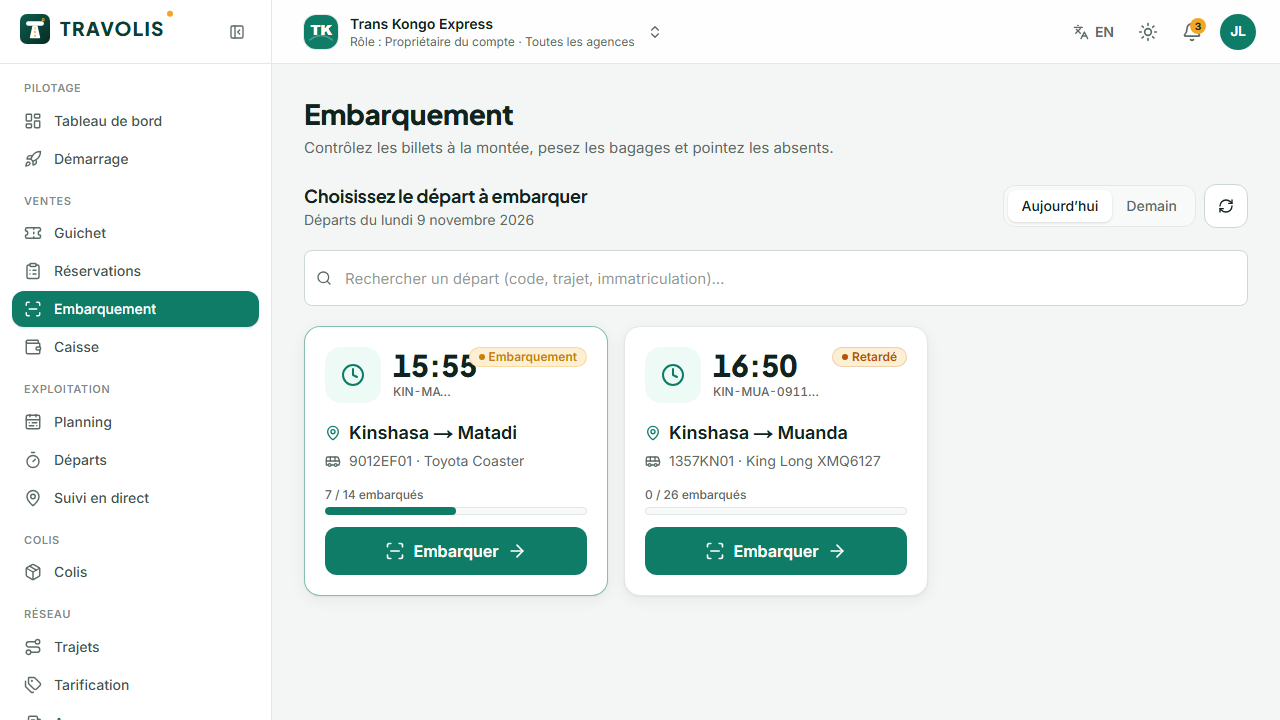
Open boarding
- Open Boarding.
- Pick the departure from today's list.
- The passenger list appears with seat, segment and a check box. The counter shows how many have boarded.
Scan a ticket
- Tap Turn on camera (allow access the first time).
- Hold the ticket's QR code (paper or phone) in the frame.
- The result is shown large:
- Boarded (green): the passenger is checked in;
- Already boarded: the ticket was already scanned, the time is shown;
- Invalid ticket: cancelled, another departure, or unpaid;
- Seat resold: the passenger was a no-show and their seat was resold.
Without a camera, type the ticket number in the Manual entry field.
Tip — A mistaken check-in can be undone from the list (Undo boarding).
Weigh baggage
After the scan, or from the passenger's row, tap Baggage:
- enter the total weight and the number of pieces;
- TRAVOLIS calculates the excess above the route allowance (and any extra baggage already paid online);
- collect the excess in cash or on the card terminal. The amount goes into your cash desk.
No-shows
At departure time, tap Release no-shows and choose the stop. Passengers not boarded are marked no-show and their seats become sellable again for the rest of the route.
Offline boarding
Without network, scanning keeps working on a counter prepared for offline mode: check-ins are saved on the device and sent when the connection returns.